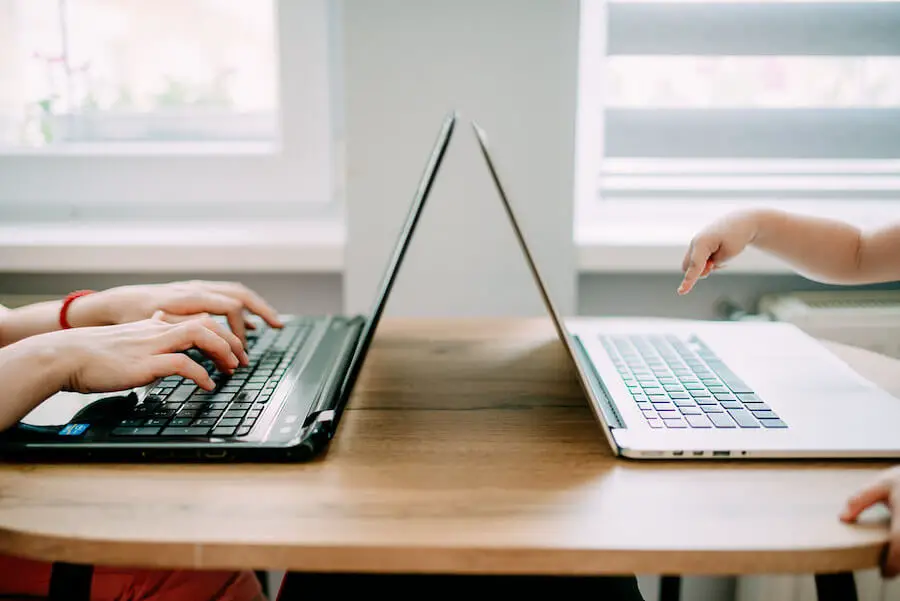
Google Home is an app built by Google. Unfortunately, this company hasn’t created a desktop program to manage smart devices in Google Home. So how to connect Google Home with a laptop?
Luckily, you can use an emulator app to make the installation straightforward. Let’s check the three steps below to discover!
Table of Contents
How To Connect Google Home With Laptop?
An Android emulator is a program that turns your computer into a virtual Android device. This software utilizes the guest device’s framework to operate on your laptop’s operating system.
To connect Google Home to your laptop, you must first download the Android emulator. There are three steps to get your job done.
Step 1: Install an Android Emulator app
There are many Android emulators. However, some may pose risks to your operating system. After experimenting with multiple options, we found that LD Player is the best emulator as it won’t disrupt your Windows.
Start by downloading the installation file right here. Remember to choose the latest version to ensure it can work with your Google Home app.
Step 2: Download Google Home
After downloading LD Player on your laptop, launch it. Then, access the app store and search for “Google Home.”
Select the app and click to install. The system will update Google Home automatically before downloading to your laptop.
Step 3: Sign into your account
Now you have the Google Home app on your laptop. Open it and sign into your Google account. If you don’t have it yet, create one.
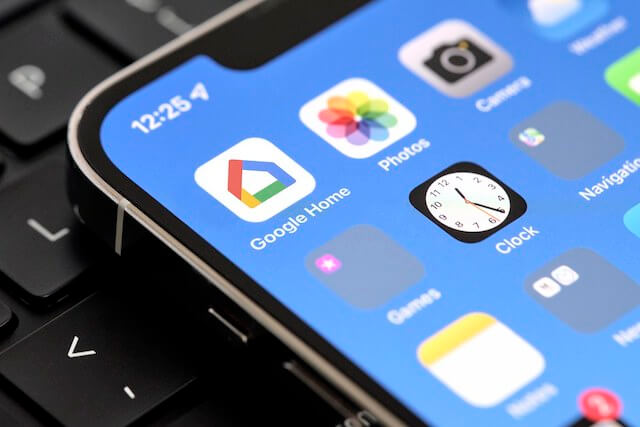
How to Use the Google Home App on Laptop?
After signing into your Google account, you can use the Google Home app on your laptop the same way you use it on your smartphone. There are many features to utilize.
Device control
The Google Home app on your laptop allows you to adjust and control the devices of your smart home system, including thermostats, lights, and security systems.
Device and room grouping
You can group multiple devices in one play and manage them as a whole. For example, if all the lights in your smart home are in the same group, you can turn off all of them with one single tap.
Daily routines
You can establish daily routines for the devices at a specific time. This feature helps automate tasks, such as shutting the lights when you leave home for work every morning.
Device management
You can introduce new devices, update their firmware, or remove the old appliances in your smart home system using the app on your laptop.
In fact, when installed in your laptop, the Google Home app has the same functions as run on your smartphone.

What Are The Best Emulators?
Aside from LD Player, you can find other emulators for installing Google Home on your laptop. Here are the most commonly-used tools.
BlueStacks
BlueStacks is popular because it supports both Mac OS and Windows. You can easily find its official website by typing its name into the browser and downloading it on your laptop quickly.
However, Bluestacks doesn’t feature an actual Android UI interface, which you often see on your phone. Besides, it can’t link to your laptop’s file system.
YouWave
YouWave used to be a big name in this sector before newer, and more advanced apps came out. The light resources make it easy to download and use.
However, YouWave is not free. You can download the free trial version first and buy the app for $20 if it works for you.
Virtual Box
Virtual Box is powerful for running multiple systems on your laptop. If you are a developer or simply want to discover operating systems, this app will be an ideal choice.
Apart from Android, Virtual Box can emulate Solaris, Linux, and many more. You may use it for both Mac OS and Windows.
GenyMotion
GenyMotion is famous among programmers. You may use it to test applications, build demos, and do many other tasks.
Using this emulator, you can control the system of the virtual device, which includes various components, such as battery power and file system.
Conclusion
You can connect Google Home to your laptop easily after finding the right emulator. There are many options, so feel free to experiment with each until you settle on the perfect one.
If you have any problems following our instructions, don’t hesitate to get in touch with us for help. Thank you for reading!