
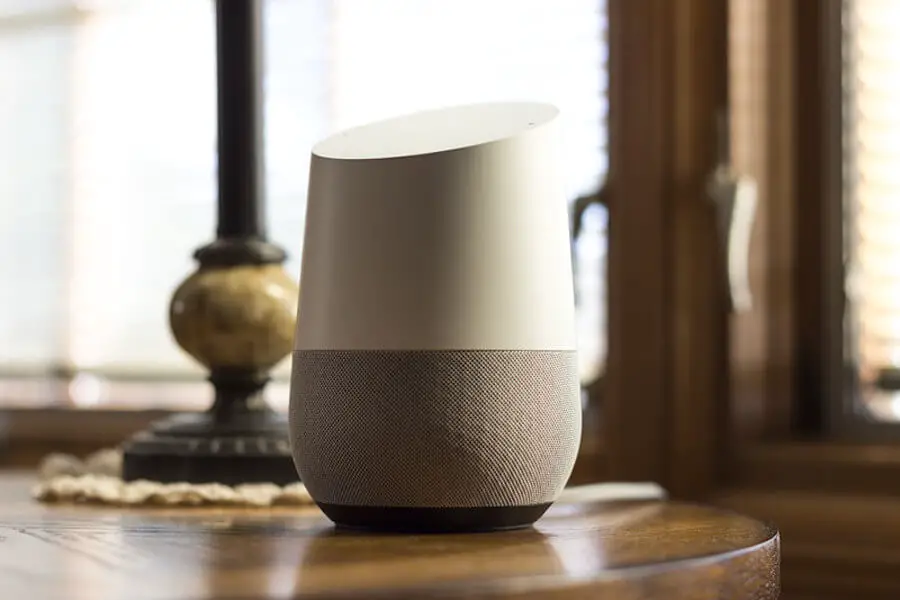

You have too much on your hands to pick up your smartphone to send a text. Thankfully, Google Home makes it simple to send SMSes using just your voice.
It’s not difficult to send texts with Google Home because with only one command, you may send a text message.
However, your device may encounter issues preventing you from sending texts. Why can’t Google Home send text messages?
Let’s dive into this article to uncover the potential causes and learn solutions.
Table of Contents
Why Can’t Google Home Send Text Messages?
The leading cause may be not working voice commands, wrong contact numbers, and lack of permission.
First of all, the voice command function of Google Assistant is not working. You may have accidentally turned off this functionality.
For this reason, your Google Home can’t listen to and understand your commands correctly when you ask it to send messages.
The contact numbers in your directory are wrong. You may have mistakenly saved the phone number of the person you want to send the message to.
Your device requires numerous commands and permissions to do different tasks. Thus, another culprit is that you do the wrong permission settings in your Google Home app.
For instance, if you want to send messages with your Google Home, you must permit it to perform this function on your smartphone.
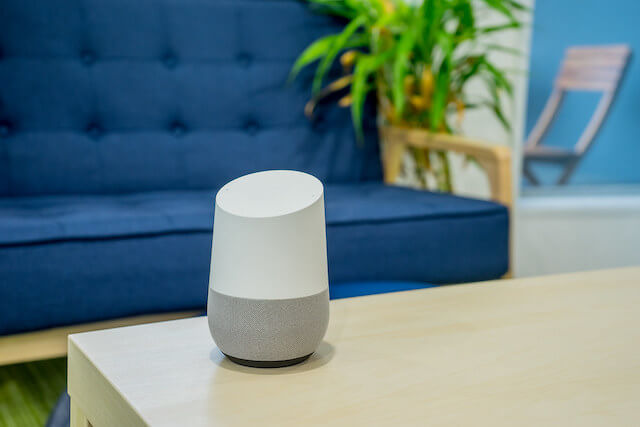
What To Do If Google Home Can’t Send Text Messages?
After learning the potential causes of not sending text messages to your Google Home, it’s time to fix this issue.
If it’s your first time using this smart device, you may find it challenging to deal with this problem. Don’t worry, and check the following solutions!
Determine Whether Voice Commands Are Properly Working
Checking to see if your Google Home voice commands are functional will help you narrow down the issue.
For example, you can do an easy voice-command online search with Google Assistant. You will realize the issue is widespread, not only with text messaging if your device can’t finish this operation. Ensure you have already turned on the voice command function. To make sure the voice algorithm understands you accurately, retrain it. You could also reset the Google Home application to its default settings.
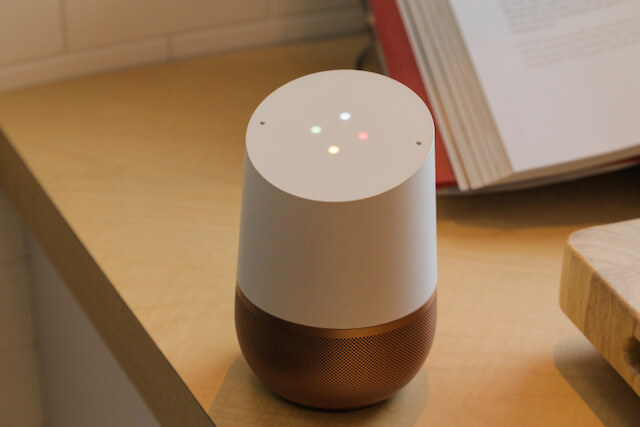
Check The Contact Numbers
As shared above, the telephone directory may encounter some problems. You can open Contacts in your app. Check the contact numbers you want to send text messages for errors.
If the contact numbers include extra spaces, periods, commas, or parentheses, your device won’t send any text.
It’s worth noting that you should leave all the contact numbers in your telephone directory in the following format: 555-555-5555.
If you save the phone numbers with the wrong format, like adding parentheses or dash, these characters will block your device from making phone calls and sending messages.
Ensure Google Assistant Gets Permission To Send Messages
Because Google Assistant depends on your Google Home app to function effectively, it requires various permissions to respond to voice instructions.
The permissions settings on your smartphone regulate which applications can access features like calling, messaging, and recording.
Therefore, your Google Home app needs access to your smartphone’s short message service to send messages using Google Assistant.
Below are the simple steps to adjust the Permissions function:
- Open your smartphone and go to Settings.
- Tap Apps & Notifications.
- Tap Permissions.
- Turn on the SMS option.
- Say simple commands to send texts.
- If it doesn’t work, reset your Google Home app to its default state.
Reset Your Google Home App To The Default Settings
If you’ve tried all the above methods but can’t still send text messages, the last solution is to reset your Google Home app to its default state.
It’s worth emphasizing that this procedure removes any possibly incorrect data from your Google app.
Alternatively, you may download and install Google app updates if that doesn’t work. Here are the guides to resetting the app:
- Open your smartphone and go to Settings.
- Tap Apps & Notifications.
- Tap Google.
- Select Storage.
- Tap Clear Cache.
- Tap Clear Storage.
- Tap Clear All Data.
- Select OK.
- Return to the homepage of the Google app.
- Tap the three-vertical symbol.
- Tap Uninstall Updates. Wait for a few minutes for the update to uninstall.
- Tap Disable.
- Tap Disable App.
- Tap Enable.
- Say commands to send texts with your Google Assistant to check this function.
- If it doesn’t work, visit Google Play Store. Search for the latest Google app version. Install it.
- If it still doesn’t work, you must wait until Google offers a fix.
How To Send Messages With Google Home?
Your Google Home may lack the function of sending messages. Don’t worry. If This Then That (IFTTT) can get this task done quickly.
Let’s know how to send texts with Google Home via IFTTT!
- Open your smartphone. Go to the Play Store.
- Look for IFTTT and download it to your phone. Install it.
- Launch the IFTTT app and follow the instructions on the screen, like login or sign up.
- Tap My Applets at the bottom.
- Select the plus symbol in the upper right corner of the menu.
- Tap on +this.
- Various apps that this third-party application can be compatible with. Scroll down. Tap Google Assistant.
- Choose a trigger. Choose Say A Phrase With A Text Ingredient.
- Connect your Google Assistant by tapping Connect & Allow IFTTT To Manage Google Voice Commands.
- Follow the guides on the screen.
- The app will ask “What do you want to say?” or “Text (name of the person you save in your telephone directory).”
- Enter the notification you wish to your Google Assistant to speak, like “The text message has been sent to the ….”
- Select the tick symbol in the upper right corner of the menu.
- Tap on +that.
- Select SMS.
- Tap Send an SMS.
- Type the phone number of the one you need to send texts to. Remember to add the country code.
- Tap Finish.
- Select Allow to give the IFTTT software to send text messages.
- Select Check Now to ensure that this function is working correctly.
The Bottom Line
Why can’t Google Home send text messages? That’s because the voice command function doesn’t work.
Otherwise, you don’t give SMS permission to access your contact directory. Also, wrong contact numbers stop your device from sending messages.
If you know other causes, please share them with us in the comment section below. Thanks for reading!
Further Reading: